
COMMAND users are able to build out their own loads inside of the COMMAND system.
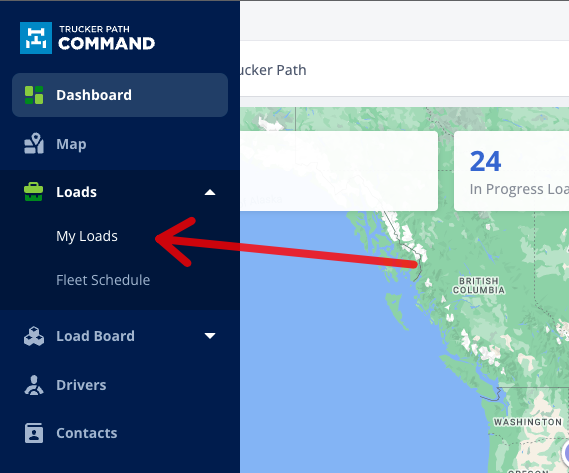
Start by clicking on the Loads dropdown and then My Loads.
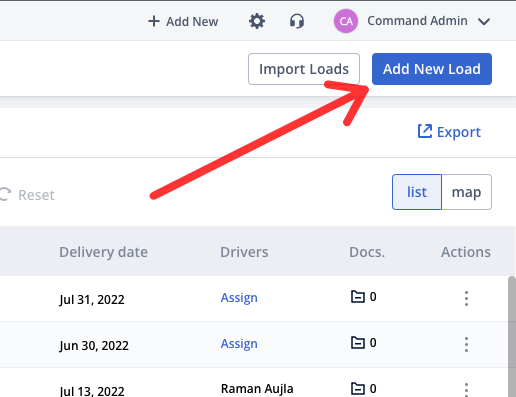
Next, click on Add New Load in the upper right-hand corner.
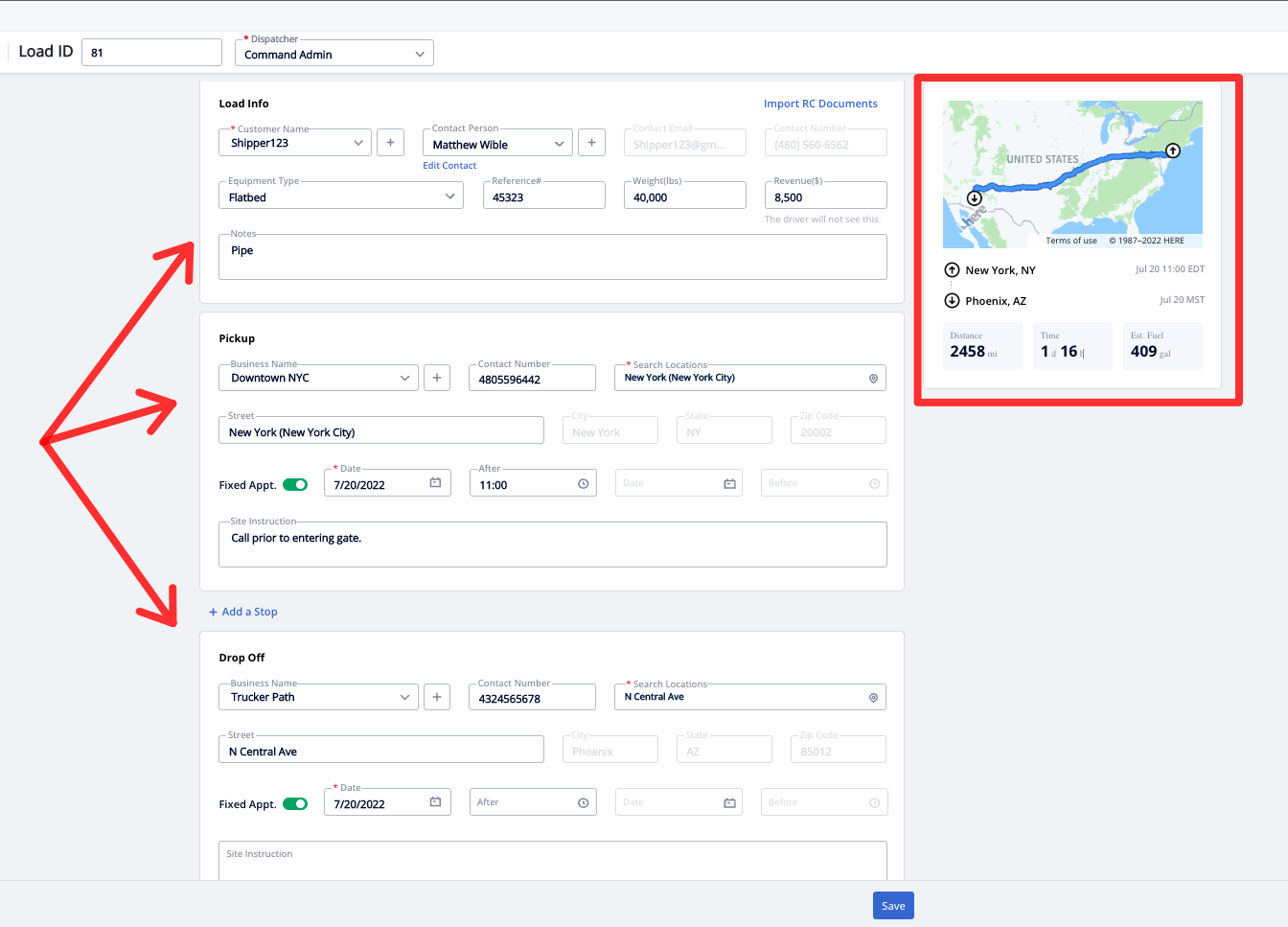
Enter all pertinent load information (pick up, delivery, stops, as well as any documents) and a preview route will display to give you an overview of the route.
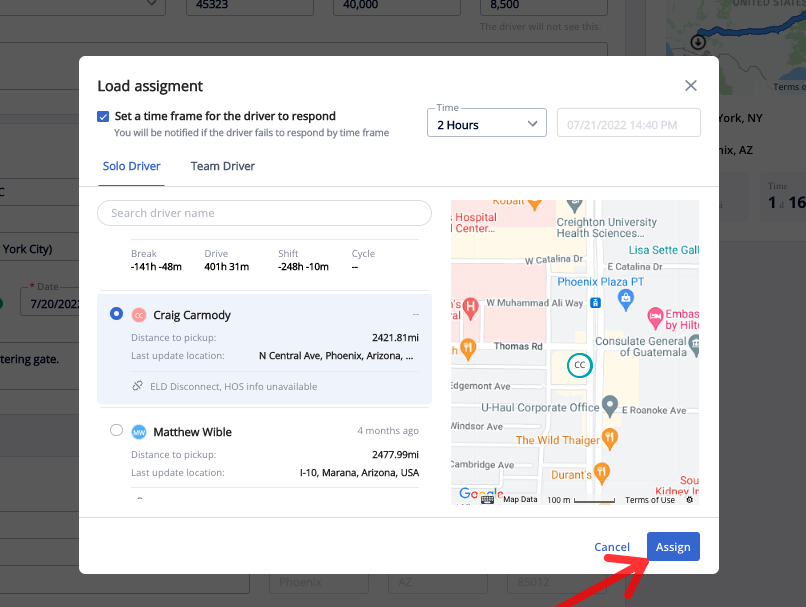
Click Save and then the system will ask if you would like to assign a driver to this load from your list of available drivers.
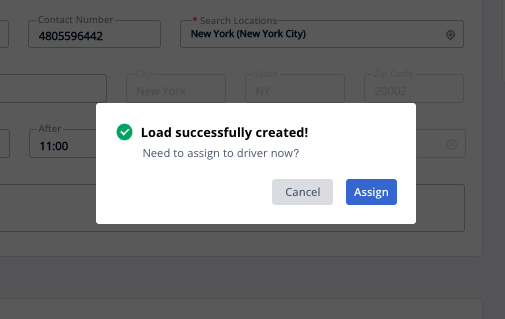
Select the driver from the list and click Assign.
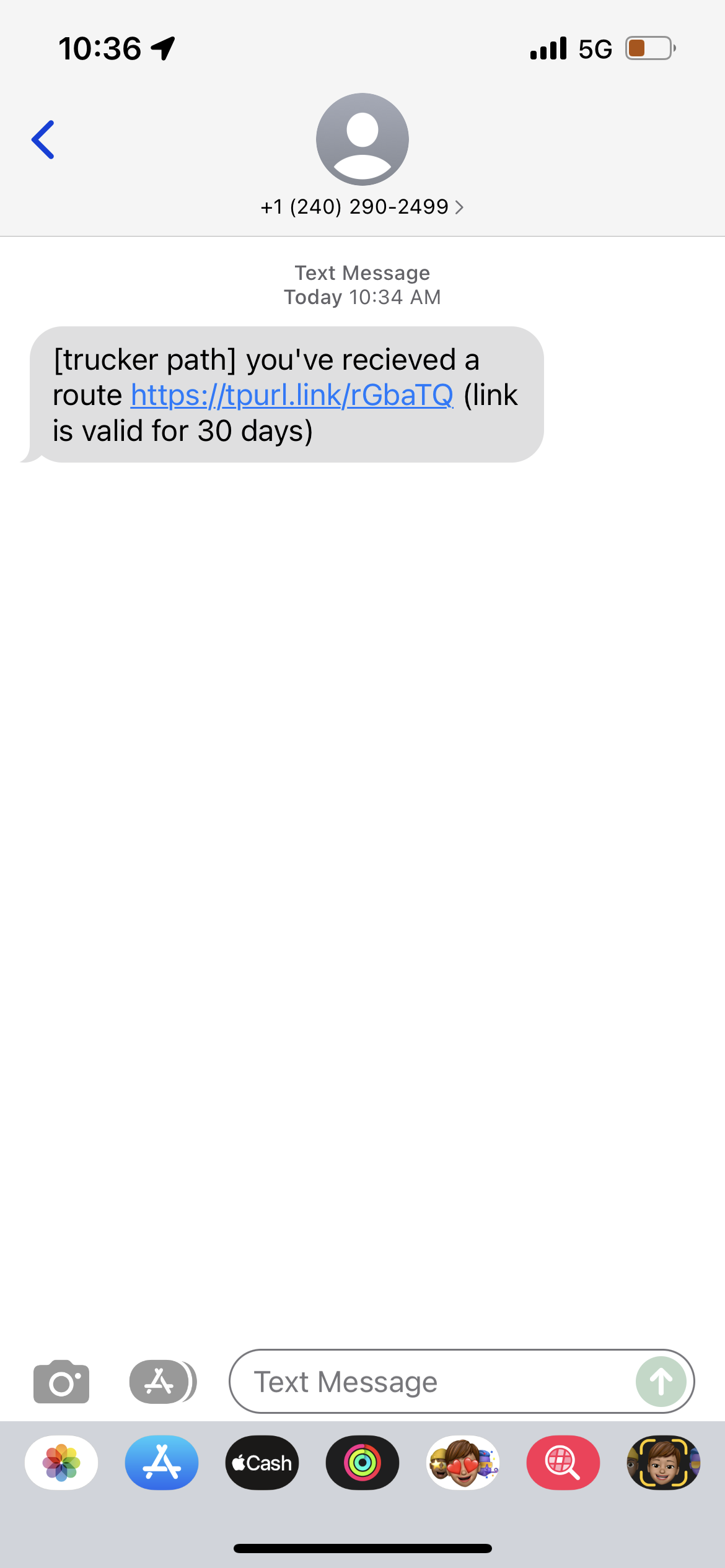
The driver will receive a text message as well as an in-app notification letting them know they have been assigned a new load with a link to access the load inside of the Trucker Path app.
Here is a quick video showing how you can create and dispatch loads to your drivers.
Questions?
If you have any questions regarding this topic or any others, please reach out to our Support Team via email at commandsupport@truckerpath.com or by phone at +1 (833) 929-4441.
Comments
Please sign in to leave a comment.