
Introduction
The following guide will help you setup Single Sign On for your drivers and operators in Command.
Command Configuration
-
Log Into your command portal, ensure the account you’re using as full admin access.
-
Open up more apps and select SSO
-
For this guide we’re going to focus on Azure Active Directory.
-
Select Connect under Azure Active Directory
-
You’ll see the following page, keep this page open we will return to it after configure a few settings in Microsoft Entra ID (formally known as Azure Active Directory)
- Enter your Azure Admin Email address into the first field
Finding your Tenant ID
- Get your Tenant ID by going to your Microsoft Entra ID portal → Properties and find your Tenant ID. Paste that into your command portal (see Command Configuration Step 5 above)
Azure Configuration
-
Log into the Azure portal and find Entra ID using the search bar. You should see something like this.
-
Click Add → Enterprise Application
-
A pane will appear on the right. Enter “Trucker Path” as the name and ensure the last option is selected: Integrate any other application you don’t find in the gallery
-
Then Create your application
-
Congratulations you have created the application! Hang tight, we’re not quite done yet.
- Copy the Application ID and paste it into the corresponding field in your command Azure setup module
-
Click Set up single sign on
-
Select SAML
-
Edit Basic SAML Configuration
-
Press Add Identifier and enter truckerpath as one of the identifiers
-
Go back to the Command page we opened up earlier. Copy the Reply Link
-
Paste that link into the Reply URL link in the Azure Entra ID portal.
-
Click Save and close this pane
-
Navigate back to Microsoft Entra ID main dashboard by clicking this:
-
On the left panel find App Registrations → All Applications
-
Select your recently created application
-
Select Certificates and secrets from the left panel
-
Navigate to Client Secrets → New client secret. Fill in the fields below accordingly and click Add
-
Copy and paste the Secret ID it into the Command configuration page (see Command Configuration Step 5 above)
Role Configuration
For configuring roles you will have to create a custom role for your users. For more information see here.
- Once you have setup your custom roles
-
Sign in to the Microsoft Entra admin center as at least a Privileged Role Administrator.
-
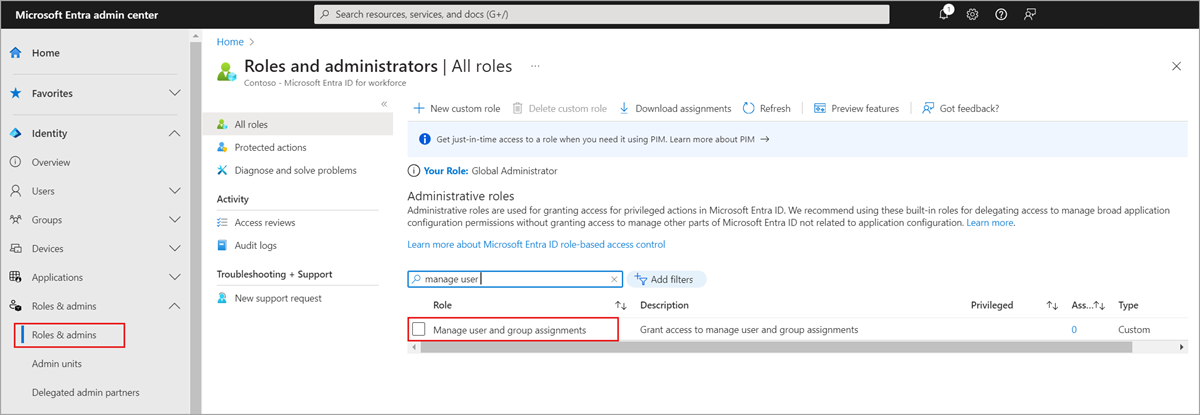
Browse to Identity > Roles & admins > Roles & admins.
-
Select the Manage user and group assignments role.
-
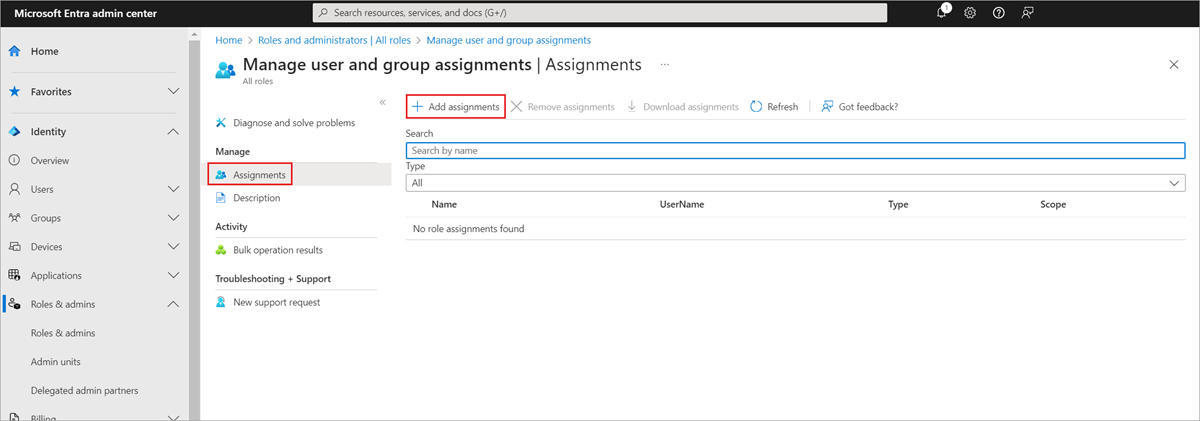
Select Add assignment, select the desired user, and then click Select to add role assignment to the user.
- To grant permissions to assignees to manage users and group access for all enterprise apps organization-wide, start from the organization-wide Roles and Administrators list on the Microsoft Entra ID Overview page for your organization.
- To grant permissions to assignees to manage users and group access for a specific enterprise app, go to that app in Microsoft Entra ID and open in the Roles and Administrators list for that app. Select the new custom role and complete the user or group assignment. The assignees can manage users and group access only for the specific app.
-
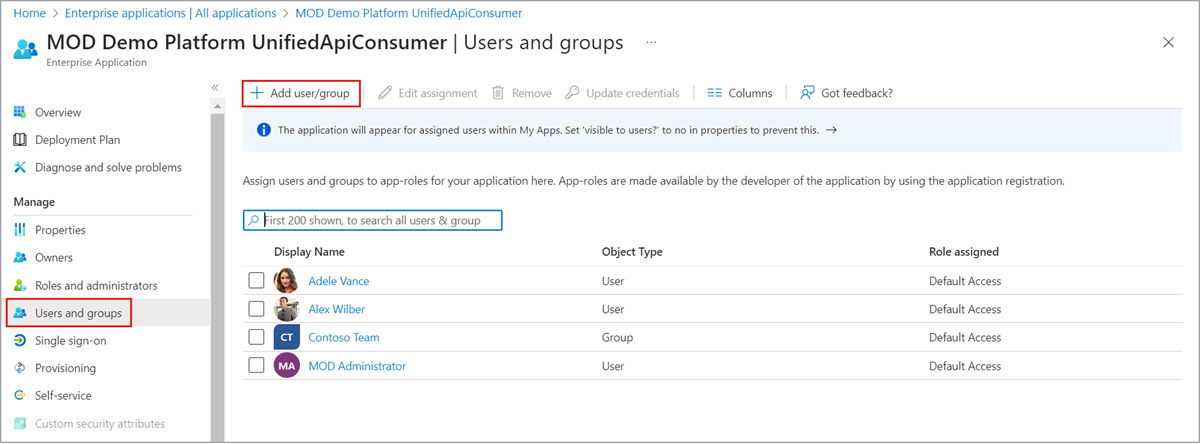
To test your custom role assignment, sign in as the assignee and open an application’s Users and groups page to verify that the Add user option is enabled.
- Once the role is created and assigned, get the role ID and add it to the fields in the command portal.
- Press Save and allow 10-20min for everything to connect.
Comments
Please sign in to leave a comment.